
Google Ads
There are several ways to advertise on Google. In this blog, we will show you the simplest way to advertise on Google.
If this is your first time advertising, you will receive detailed instructions to help you set up your Google ad easily.
Before we begin, you must have a Google Ads account.
To open a Google Ads account, you need a Gmail address ready, then visit Google Ads. If you do not have one yet, at this Google account setup you can find instructions on creating your Google account.
When opening your Google Ads account and entering your details, take care to select the currency and country carefully, as they are difficult to change later.
If you are opening an account for someone else to manage, skip campaign creation by looking for the small blue text at the bottom, usually “Skip campaign guidance” or “Change to expert mode”. If you will create campaigns yourself, complete the full process.
Once your account is up and running, you are ready to advertise with Google Ads in 5 steps.
Define your goal
First, visit the Google Ads homepage. From there, click the Start now button in the middle of the page or in the top-right corner.
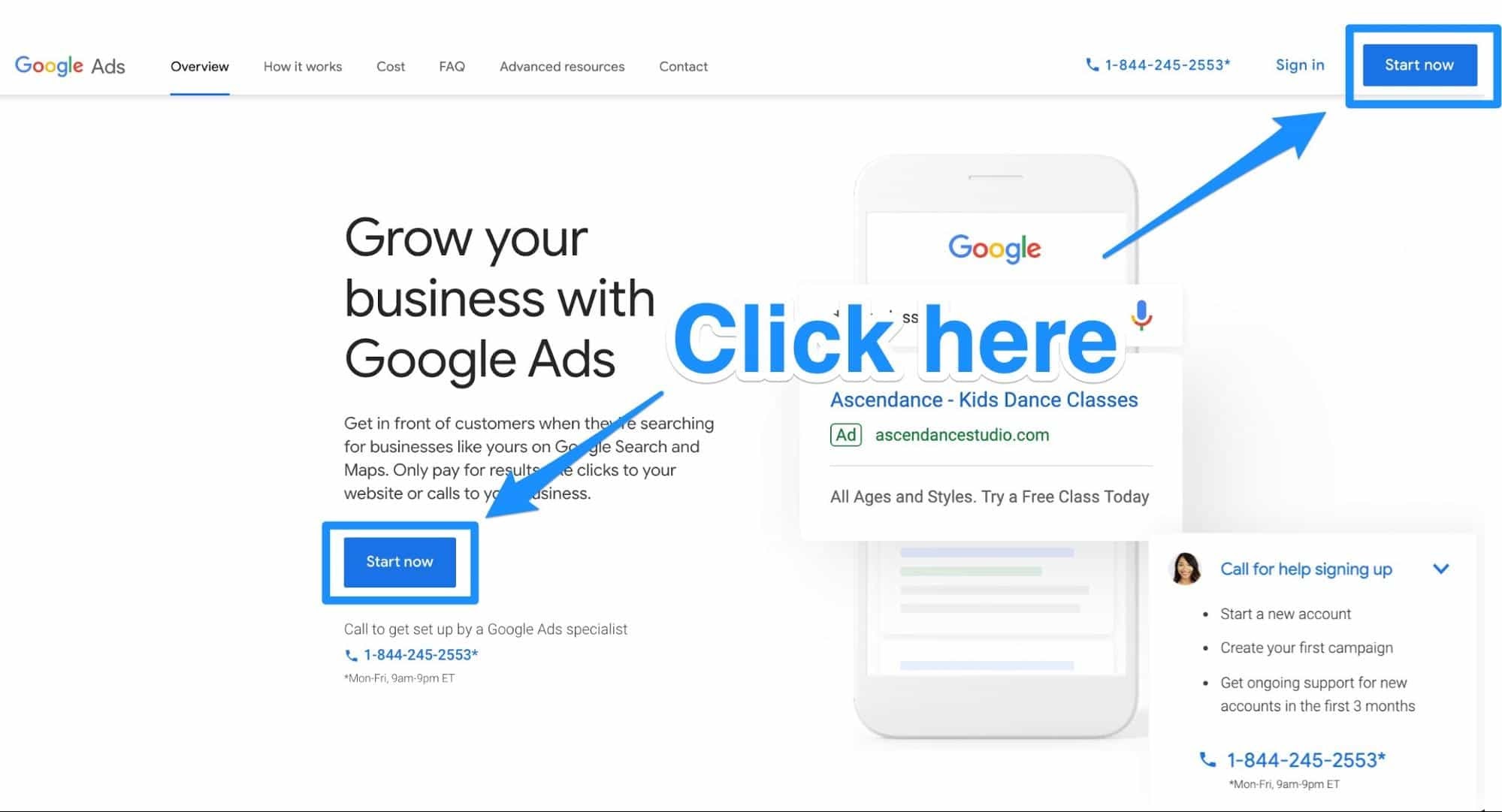
If you are taken to the dashboard, click + New campaign.
You will then need to choose a campaign goal. Selecting this goal tells Google what type of audience you want to target and how it will receive money from bidding.
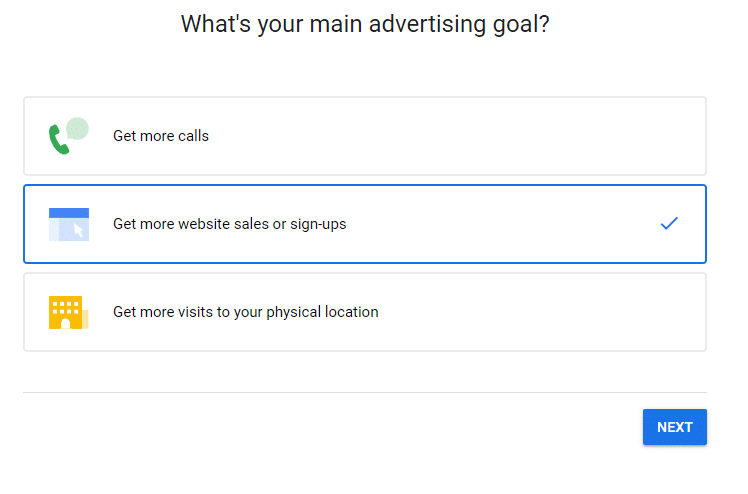
You can choose different objectives. Doing so will help you create the right type of ad for you.
Tip: A strong, clearly defined goal can mean the difference between turning your Google Ads campaign into a lead-generation machine and wasting time and money.
Choose your business name and keywords
After selecting your objectives, click Next. On the following page, enter your business name.
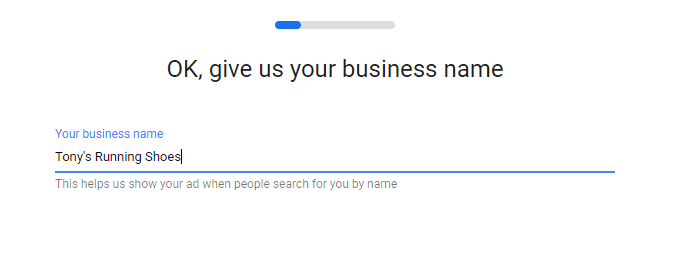
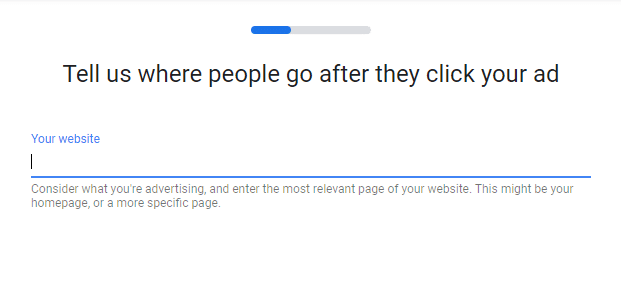
Click Next after adding your business name. You can now add the URL users will visit after clicking your ad.
On the next page, you can choose keyword themes that match your ad and brand. Google Keyword Planner could come in handy here.
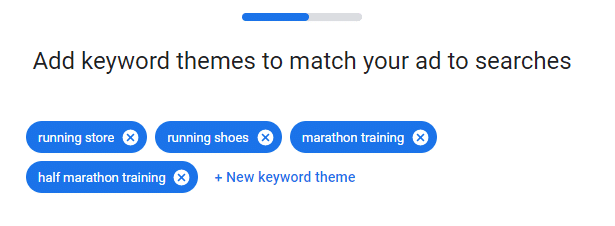
After selecting your keywords, click Next.
Choose your target audience
On the next page, you can choose where to target your ad. This could be near a specific address, such as a physical storefront or location. Or it could cover broader regions, cities or postal codes.
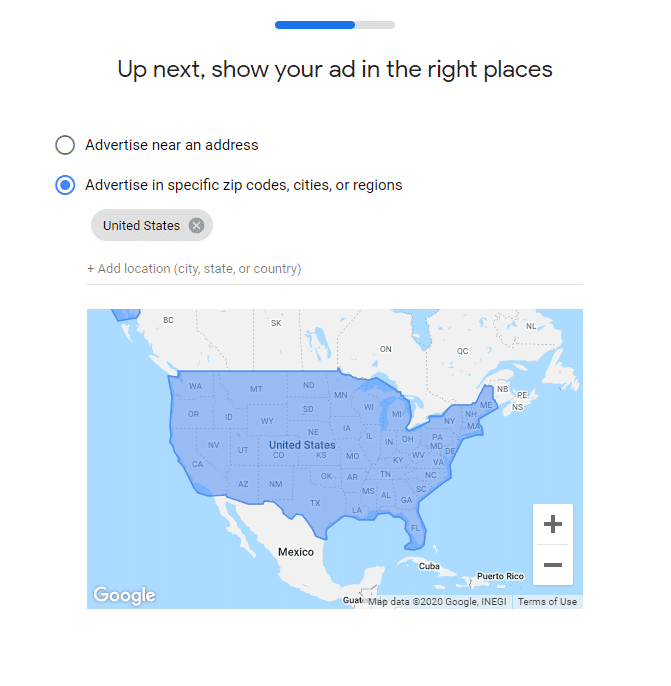
Choose the region you want to target, then click Next.
Create a fantastic ad
Now comes the fun part: creating the ad itself.
In this step, you can create your ad headline and description. The ad preview box on the right makes the process even easier.
Google also offers helpful tips and ad examples to get you started with writing your ad.
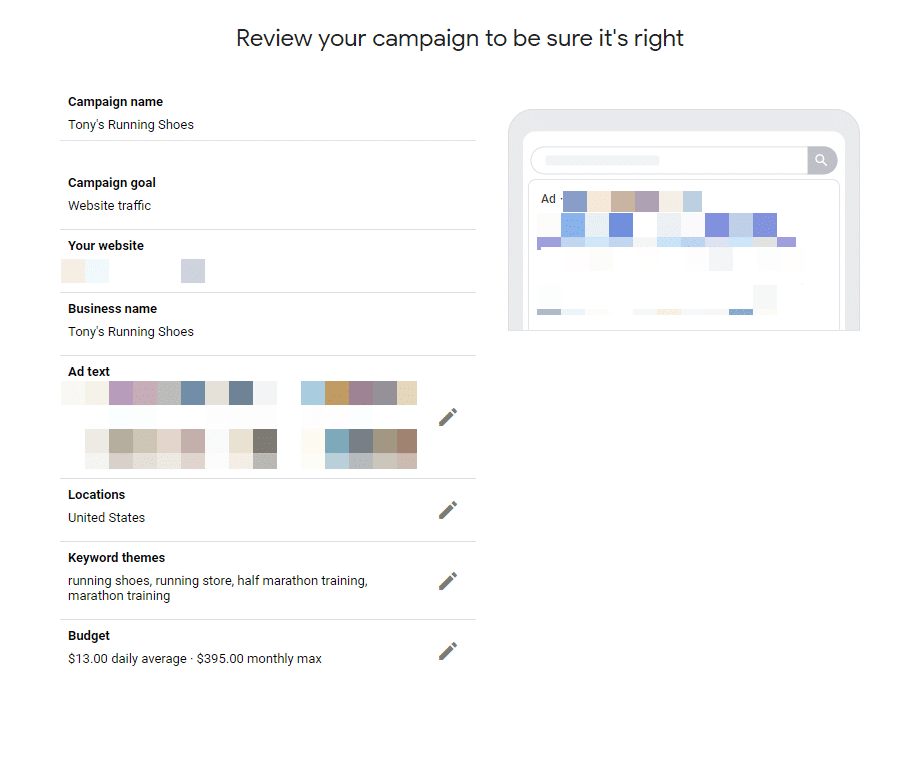
There is just one thing you need to know to write a great ad: know your audience.
That is all. There is no great secret or trick to writing compelling copy. Once you know your target market and its pain points, you can create content that sends people clicking on your ad faster than you can say “Don Draper”.
Set up billing
This part is straightforward. Enter all your billing details, along with any promotional codes you may have for a discount.
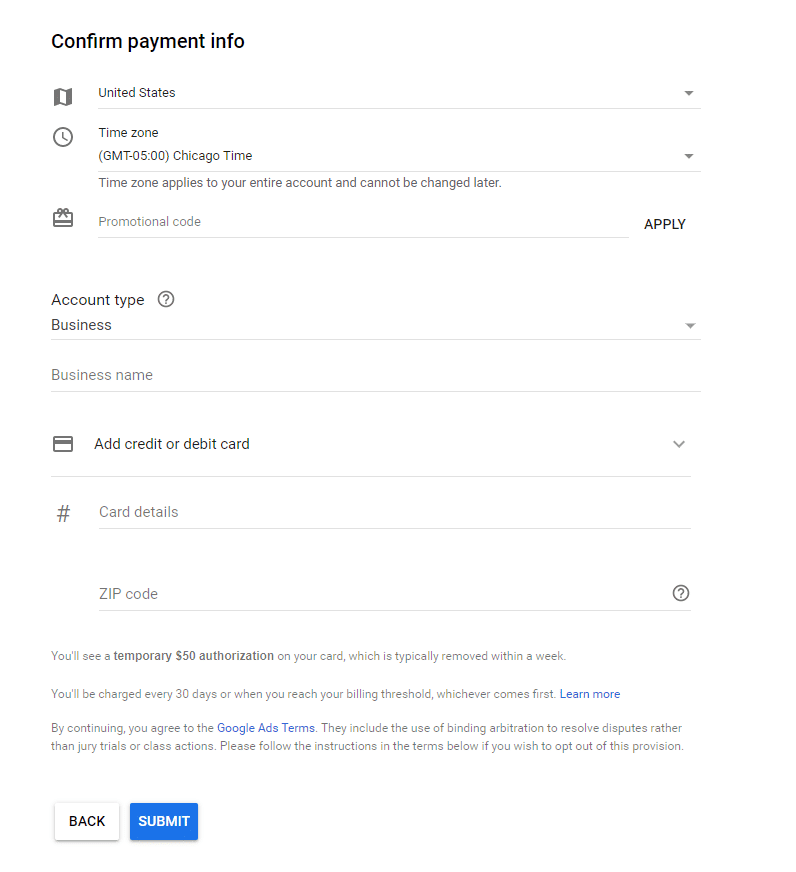
Then click Submit.
Congratulations! You have just created your first Google ad!
You still need to learn how to track your Google ad using Google Analytics.
But we will cover that in more detail in the course.
Helpful Google Ads tools
Google Ads tools can be used for a variety of functions.
- Account management tools help you efficiently review, edit and update your account.
- Keyword tools provide resources for selecting effective keywords.
- Placement refinement tools allow you to optimize where your ad appears.
- Bid and budget management tools help you make the most of your advertising budget, save time and understand how much you should bid for advertising.
- Ad creation tools allow you to create customized ads to promote your business.
- Troubleshooting tools help you understand how to resolve issues that arise in your account. For example, using the disapproved ads filter helps you quickly find and update ads that are not running due to policy issues.
Beyond these tools, many similar tools can help you create good ads.
For example, alongside Google's tools, we use SEMrush, a platform used across every area of digital marketing.
Their keyword tool looks like this
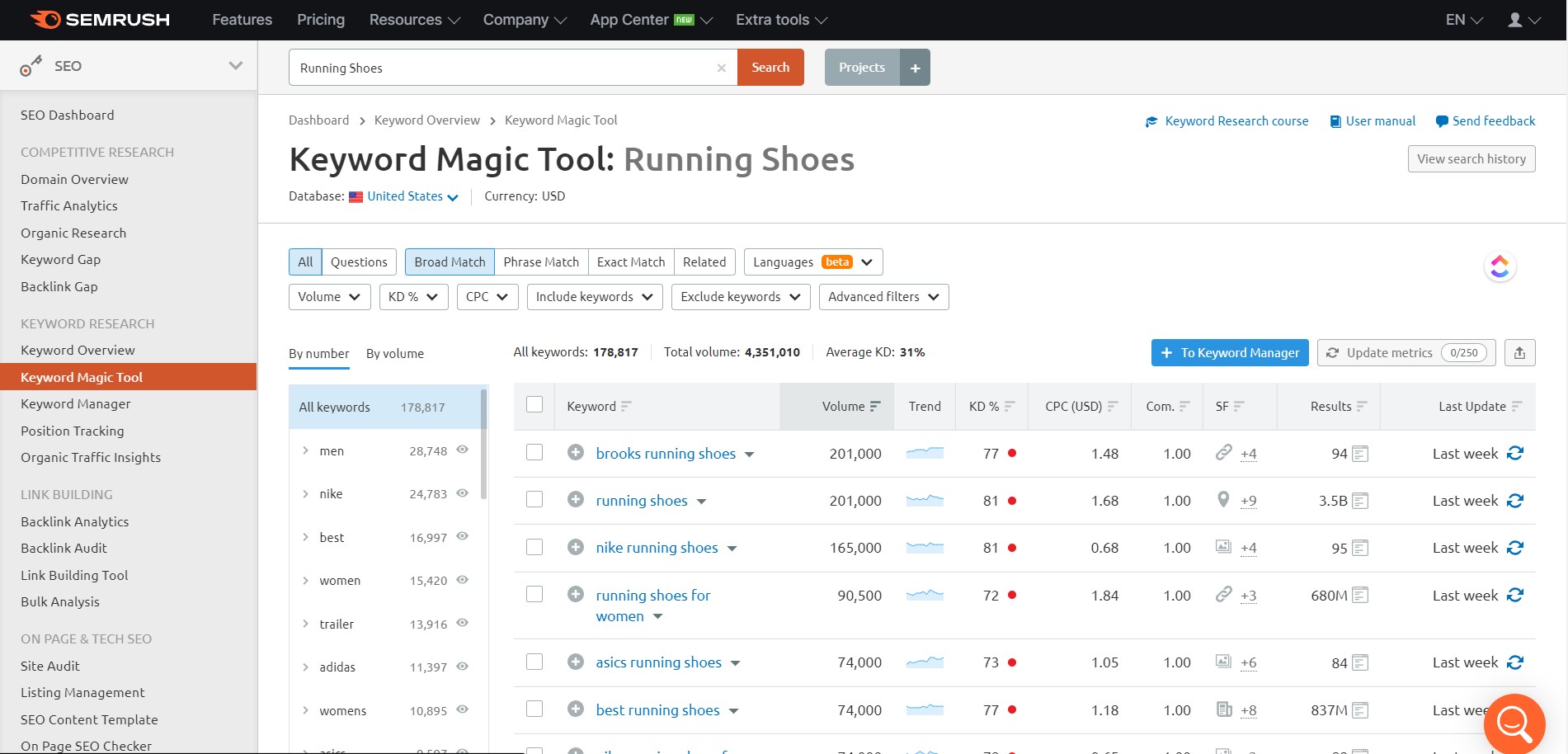
If you would like to see for yourself how SEMrush works, you can sign up for a 7-day trial.
Using the right tools for your account is like using the right tools when building a house: they make your job easier and improve the quality of the finished product. Using the right Google Ads tools can help you improve your return on investment and save time while managing your account.
If you are interested in learning more, sign up for the Google Ads course. Find more information Google Ads course.